
Draft Onboarding
This use case describes how to create a draft program for a user. The program needs to be manually verified on the platform before it can be started.
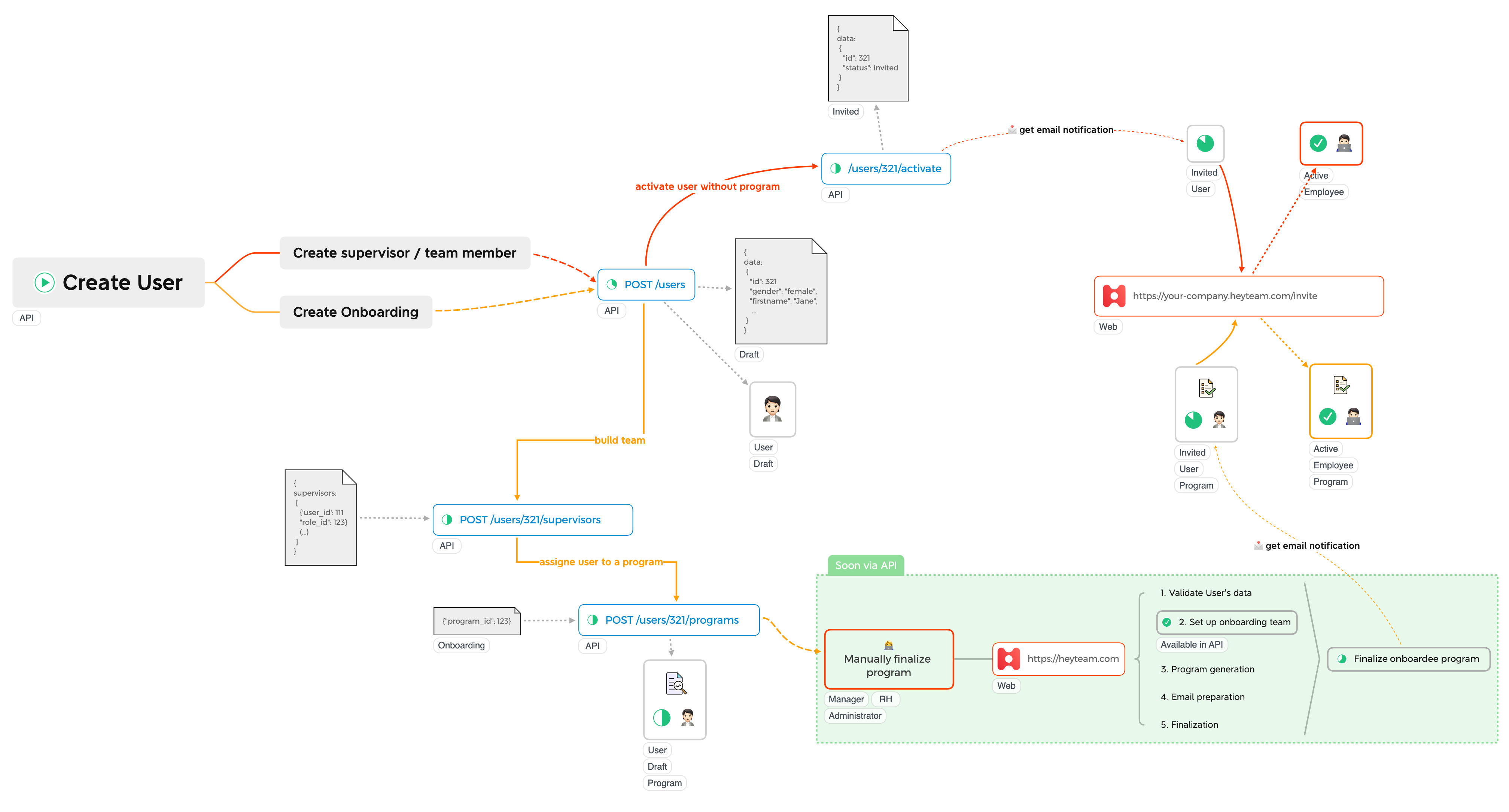
Draft Onboarding workflow
The process consists of three easy steps (or more, if you also need to create supervisors for the team).
1. Create a user
To create a user, make a POST request to /users like so :
curl --request POST \
     --url https://[your-domain].heyteam.com/eapi/users \
     --header 'accept: application/json' \
     --header 'authorization: Bearer your-token' \
     --header 'content-type: application/json' \
     --data '
{
  "firstname": "John",
  "lastname": "Doe",
  "personal_email": "[email protected]",
}
'
You will receive a response containing the user's data, including their ID. You will need this ID when setting up the team and creating the program.
When the user is a supervisorIf the user is a supervisor (and not the employee to onboard), you can activate him immediately by making a POST request to /users/:ID/activate. No parameters are necessary.
By doing so, the supervisor will receive an invitation to connect to HeyTeam.
How to store your users's ID in Heyteam on creation ?
Lots of time, you will want to store your own user's id (UUID, registration number, SAAS ID,...) in HeyTeam to be able to easily recognize a user later on, or when you have to retrieve this user for other workflows without knowing the HeyTeam ID. This is done using custom field and you can store it right away during the user's creation process.
To do that, you will first need to know which custom field template you wish to use by making a GET request on /configuration/custom-fields. Once you have the custom field key you want to use, you can add the following data to your POST request :
"custom_fields": [
    {
      "key": "uuid",
      "value": "db553472-d44b-11ed-afa1-0242ac120002"
    }
  ]
The key represent the custom field template key and the value represent the value you want to store for this user (in this case, you will store and attach a uuid to the user)
2. Setting up the team.
To set up the team, you will need to make a POST request to /users/:id/supervisors (:id is for the ID of the user to onboard) like the following example:
curl --request POST \
     --url https://[your-domain].heyteam.com/eapi/users/:id/supervisors \
     --header 'accept: application/json' \
     --header 'authorization: Bearer your-token' \
     --header 'content-type: application/json' \
     --data '
{
  "supervisors": [
    {
      "user_id": 123,
      "role_id": 432
    },
    {
      "user_id": 432,
      "role_id": 654
    }
  ]
}
'
This example sets up a team with two supervisors:
- supervisor with ID 123 will have the role with ID 432.
- supervisor with ID 432 will have the role with ID 654.
You will receive a response containing the user's team data.
How to retrieve the roles and users for the team setup ?roles : GET request to /configuration/roles. This will provide you with the correct role IDs to set up your team.
users : GET request to /users.
3. Create the user's Program
Once the team is set up, you can now create the program by making a POST request to /users/:id/programs (:id is for the ID of the user to onboard) with the program template ID as data.
Example to add the program template 987 to the user 321:
curl --request POST \
     --url https:/[your-domain].heyteam.com/eapi/users/321/programs \
     --header 'accept: application/json' \
     --header 'authorization: Bearer your-token' \
     --header 'content-type: application/json' \
     --data '{"program_id":987}'
You will receive a response containing the user's program data.
What are template programs and how to retrieve them ?In HeyTeam platform, you can add, edit or delete program templates. Those templates are the one where all the actions and setup are defined (type of program, for who, what actions or requirements are linked to it, etc).
When adding a program to the user, HeyTeam is using this template to create all the actions defined in the template and creates a program linked to the user.
To retrieve all the program templates you can chose from, make a GET request to /configuration/programs.
What’s next ?
If you have followed the three steps, the user has been created, his team has been set up, and his program has been created.
You will be able to see the program in the platform under the draft section. To finish the onboarding process, you now need to manually finalize all the steps in the platform and launch the program.
Updated 12 months ago